Work From Home Laptop Setup Guide: Everything You Need for Maximum Productivity
Setting up the perfect work from home laptop station? This guide covers hardware choices, ergonomics, accessories, and optimization tips for peak productivity.

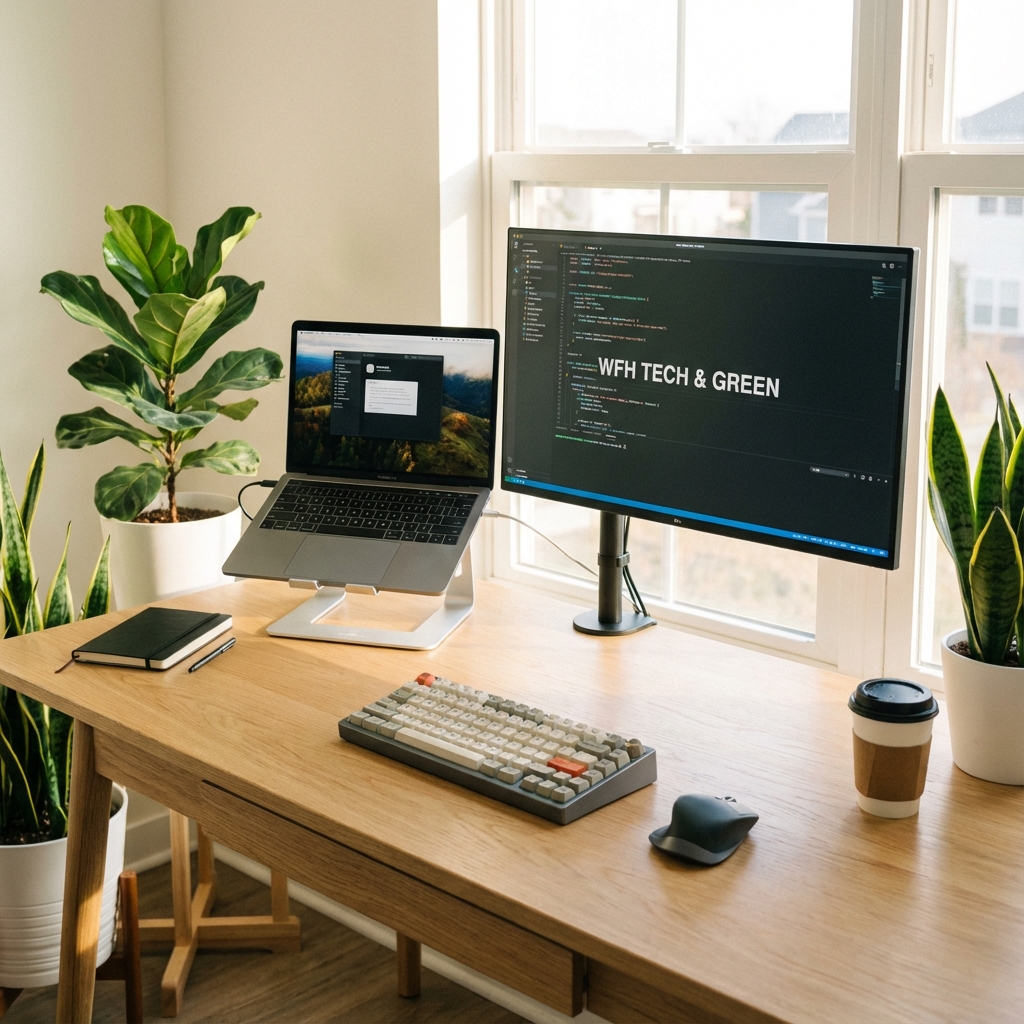
The shift to remote work has transformed how millions of people think about their home office setup. Your laptop is likely at the center of this workspace, serving as your primary tool for everything from video conferences to document creation. But simply having a laptop isn't enough—how you set it up and accessorize it can dramatically impact your productivity, health, and work satisfaction.
This comprehensive guide covers everything you need to know about creating the ultimate work-from-home laptop setup.
Choosing the Right Laptop for Remote Work
If you're considering a new laptop specifically for work-from-home purposes, certain features become more important than they might be for casual use.
Processor Requirements for Work Tasks
Your processor needs depend heavily on your job role:
For general office work (email, documents, spreadsheets, video calls):
- Intel Core i5 or AMD Ryzen 5 is more than sufficient
- Even modern i3 or Ryzen 3 processors handle these tasks well
- Focus budget on other features like display and build quality
For creative professionals (video editing, design work, 3D rendering):
- Intel Core i7/i9 or AMD Ryzen 7/9 recommended
- Consider laptops with dedicated graphics
- More cores and threads significantly speed up rendering
For software developers:
- Strong multi-core performance for compilation
- Consider 32GB RAM for running virtual machines
- Fast SSD for quick project loading
Display Considerations for Extended Work
You'll be staring at your laptop screen for 8+ hours daily. Eye comfort matters immensely:
Size matters: A 15.6-inch or larger display reduces eye strain compared to smaller screens. If portability isn't critical, go bigger.
Resolution: 1080p is the minimum. Consider 1440p or 4K for detailed work like design or spreadsheets with many columns.
Panel quality: IPS panels offer better viewing angles and color accuracy than TN panels. OLED is excellent but can cause burn-in with static elements.
Anti-glare coating: Essential for offices with windows or overhead lighting.
Brightness: 300 nits minimum. 400+ nits is ideal for varied lighting conditions.
Build Quality and Reliability
Work laptops need to be dependable. Consider:
Business-class laptops (ThinkPad, Latitude, EliteBook) are built for daily professional use:
- More durable keyboards rated for more keystrokes
- Better hinge mechanisms that don't loosen over time
- Enterprise-grade support options
- Often more repairable
Consumer laptops can work well but vary in reliability:
- Research reliability ratings before purchasing
- Read long-term reviews, not just launch coverage
- Consider extended warranty for peace of mind
Battery Life for Flexibility
Even at home, battery life provides flexibility:
- Move to different rooms without finding outlets
- Continue working during power outages
- Reduce cable clutter on your desk
- Look for 8+ hours rated battery life
- Fast charging is a significant convenience
Essential Accessories for Productivity
A laptop alone isn't optimal for all-day work. The right accessories transform your setup.
External Monitor: The Single Biggest Upgrade
Adding an external monitor might be the most impactful upgrade for your productivity:
Why an external monitor matters:
- Larger screen real estate for multitasking
- Reference documents while writing
- See more spreadsheet data without scrolling
- Reduce eye strain with larger text and elements
- Proper ergonomic positioning at eye level
Choosing the right monitor:
Size: 24-27 inches is ideal for most desks. 32 inches needs more distance.
Resolution:
- 1080p is acceptable at 24 inches
- 1440p is the sweet spot for 27 inches
- 4K is excellent but may require scaling
Panel type:
- IPS for accurate colors and wide viewing angles
- VA for better contrast (good for low-light rooms)
- OLED for the best image quality (expensive)
Refresh rate: 60Hz is fine for work. 75Hz is slightly smoother.
Features to consider:
- USB-C connectivity (can power laptop and transfer data)
- Height adjustable stand
- Blue light filter mode
- Thin bezels for cleaner look
Keyboard: Protect Your Hands
Laptop keyboards are designed for portability, not comfort. An external keyboard offers:
Better ergonomics: Key spacing and angles designed for extended typing
Customization: Mechanical keyboards offer different switch types for your preference
Longevity: External keyboards outlast laptop keyboards significantly
Keyboard recommendations by type:
For quiet office environments: Membrane keyboards or mechanical with silent switches
For typing enjoyment: Mechanical keyboards with tactile switches
For ergonomics: Split keyboards or curved designs reduce strain
Budget options: Even $30-50 keyboards improve over built-in options
Mouse: Precision and Comfort
The laptop trackpad works in a pinch, but a proper mouse reduces wrist strain and increases precision:
Ergonomic mice position your hand naturally, reducing strain during long work sessions.
Vertical mice keep your wrist in a neutral position, beneficial for those prone to RSI.
Trackball mice require less arm movement, good for limited desk space.
Standard mice remain versatile and familiar for most users.
Key features:
- Adjustable DPI for different tasks
- Programmable buttons for shortcuts
- Wireless reduces cable clutter
- Long battery life (weeks to months)
Laptop Stand: Elevate Your Setup
Placing your laptop at eye level is crucial for neck health:
Benefits of a laptop stand:
- Screen at eye level reduces neck strain
- Improves airflow for cooler operation
- Frees desk space underneath
- Creates a more organized appearance
Stand options:
- Fixed stands: Simple and stable
- Adjustable stands: Customize height and angle
- Portable stands: Great for varying work locations
- Monitor arms with laptop trays: Maximum flexibility
USB Hub or Docking Station
Modern laptops often lack sufficient ports. A hub or dock expands your options:
USB hubs provide:
- Additional USB-A and USB-C ports
- SD card readers for photographers
- Sometimes HDMI output
- Budget-friendly ($20-80)
Docking stations offer:
- All hub features plus more
- Dual monitor support
- Ethernet connection
- Power delivery to charge laptop
- Higher cost ($100-300+)
For dual monitors: Ensure your dock supports your desired resolution and refresh rate configuration.
Ergonomic Setup for Long-Term Health
Poor ergonomics cause real health problems. Invest time in proper setup.
Monitor Positioning
Height: Top of screen should be at or slightly below eye level
Distance: Arm's length away (approximately 20-26 inches)
Angle: Slight tilt (10-20 degrees) backward
Position: Directly in front of you, not to the side
Chair and Desk Arrangement
Chair height: Feet flat on floor, thighs parallel to ground
Armrests: Should allow shoulders to relax while typing
Back support: Lumbar support maintaining natural spine curve
Desk height: Elbows at 90-degree angle when typing
Keyboard and Mouse Placement
Keyboard: Directly in front of you, not angled
Mouse: Immediately next to keyboard, same level
Wrist position: Neutral, not bent up or down
Consider: Wrist rest for comfort during pauses (not while actively typing)
Lighting Considerations
Avoid screen glare: Position monitor perpendicular to windows
Reduce contrast: Don't work in darkness with bright screen
Task lighting: Illuminate documents without creating reflections
Consider: Bias lighting behind monitor reduces eye strain
Software and System Optimization
Hardware is only part of the equation. Optimize your software for maximum productivity.
Operating System Tweaks
Windows users:
- Disable unnecessary startup programs
- Enable Focus Assist during work hours
- Configure Night Light for evening work
- Use virtual desktops to organize work contexts
macOS users:
- Set up Spaces for different project contexts
- Configure Focus modes for work hours
- Use Hot Corners for quick access
- Enable Night Shift for evening protection
Essential Productivity Software
Communication: Zoom, Microsoft Teams, or Slack depending on company requirements
Document work: Microsoft Office, Google Workspace, or LibreOffice
Note-taking: Notion, Obsidian, or OneNote for organization
Task management: Todoist, Asana, or Trello for tracking work
Time tracking: Toggl, RescueTime, or Clockify for understanding time allocation
Backup and Security
Working from home means protecting company and personal data:
Cloud backup: Enable automatic cloud sync for important files
Local backup: External drive backup for large files or complete system image
VPN: Use company VPN when accessing sensitive resources
Password manager: Unique, strong passwords for every service
Two-factor authentication: Enable on all work accounts
Internet Connection Optimization
Your internet connection is your lifeline when working remotely.
Speed Requirements
Basic office work: 10-25 Mbps download sufficient
Video conferencing: 25-50 Mbps recommended for reliable HD video
Large file transfers or video editing: 100+ Mbps improves productivity significantly
Upload speed matters: Often overlooked but crucial for video calls and file sharing
Improving Connection Quality
Use ethernet when possible: More stable than Wi-Fi for important calls
Wi-Fi optimization:
- Position router centrally in home
- Use 5GHz band for less interference
- Consider mesh Wi-Fi for larger homes
- Keep router firmware updated
Reduce interference:
- Keep router away from microwaves, cordless phones
- Use Wi-Fi analyzer to find least congested channel
- Consider powerline adapters for wired connection without new cables
Backup Connection Options
For critical work, have a backup plan:
- Mobile hotspot from your phone
- Dedicated mobile Wi-Fi device
- Local café or coworking space as emergency option
Creating a Productive Environment
Your physical environment affects your work quality.
Dedicate a Workspace
Why dedicated space matters:
- Creates mental separation between work and personal life
- Reduces distractions from household activities
- Allows optimized setup that stays ready
- Signals to others when you're working
If you can't have a separate room:
- Create visual boundaries with dividers or shelving
- Use a specific area of a room consistently
- Pack away work items at end of day if possible
Managing Distractions
Physical distractions:
- Close doors when possible during focus time
- Use noise-canceling headphones
- Communicate boundaries with family members
- Keep phone in another room or on silent
Digital distractions:
- Use website blockers during focus periods
- Turn off non-essential notifications
- Set specific times for email checking
- Use focus modes on your devices
Comfort Details
Temperature: Keep workspace comfortably cool (studies suggest 68-72°F optimal)
Plants: Add greenery for improved air quality and mental wellbeing
Personalization: Make the space enjoyable without cluttering
Sound: Consider white noise or background music for focus
Budget Considerations
Building an optimal setup doesn't require massive investment. Prioritize based on your specific needs.
Priority Order for Limited Budget
-
Chair: Your health is the priority. A good ergonomic chair ($200-400) prevents long-term problems.
-
External monitor: The productivity gain is substantial. Good 27" 1080p monitors start around $150.
-
External keyboard and mouse: Basic quality options cost $50-100 together.
-
Laptop stand: Simple options start at $20-30.
-
Everything else: Dock, lighting, and accessories can come later.
Value Recommendations
You don't need premium products to work effectively:
Monitors: Dell S2722QC, LG 27UK850, AOC Q27P1 offer great value
Keyboards: Logitech K860, Keychron K2 balance quality and price
Mice: Logitech MX Master series (pricey but durable), M720 for budget
Stands: Amazon Basics and VIVO offer affordable, functional options
Chairs: Autonomous ErgoChair, HON Ignition offer good ergonomics below flagship prices
Conclusion
Creating an effective work-from-home laptop setup is an investment in both your productivity and your health. While you don't need to implement everything at once, gradually building toward an ergonomic, well-equipped workspace pays dividends through improved work quality and reduced physical strain.
Start with the basics—proper positioning and essential accessories—then refine based on your specific needs and budget. The goal is a workspace that enables you to do your best work while maintaining your wellbeing through long work-from-home days.
Your perfect setup will be unique to you, but with the principles in this guide, you can build a workspace that supports your productivity for years to come.
Building your work-from-home setup? Share your experience or ask questions through our contact page!